

Tired of seeing that download bar creep? Incensed when a connection hiccup forces you to begin a massive file from scratch? If you frequently download something on your Windows machine, there’s a software that can transform that process: Internet Download Manager (IDM). Take a glance at why IDM is the hands-down choice for Windows download management.
Table of Contents
What is Internet Download Manager (IDM)? (Your Digital Download Sidekick)
Internet Download Manager (IDM) is your Windows download sidekick with a power boost. It is not just a downloader; instead, it is a feature-rich accelerator and file manager. At its core, IDM provides three things that are revolutionary:
Significantly faster download speeds (we’re talking here noticeably faster), the hugely practical ability to pause and resume downloads at will (even after a reboot or internet disconnection), and smart tools for sorting and organizing all your downloaded files. It runs unobtrusively in the background of your browser session, waiting to turbocharge any download at the press of a button.
Why Do You Need IDM? (Solving Your Download Headaches)
Honestly, the default Windows downloader is. basic. Internet Download Manager solves real issues:
Speed Demon: IDM isn’t just fast; it’s intelligently fast. With dynamic file segmentation, it breaks up files into multiple segments and downloads them simultaneously. This quite often results in downloads finishing 5 times faster or more than through your browser. Goodbye, coffee breaks waiting for large files!
Never Lose Progress: imagine your download is 90% complete and the power goes out. Nightmare! With Internet Download Manager, it’s no issue. Simply pause at any time, restart your PC, go back online, and pick up where you left off. This resume capability even works after crashes or network outages – pure peace of mind.
Organized Downloads: IDM sorts your downloads by category (Documents, Music, Videos, etc.) automatically into editable categories. Furthermore, its built-in scheduler enables you to put downloads in a queue for off-peak hours (e.g., overnight), saving bandwidth during your peak usage hours.
Browser Integration: No more copy and paste links. Install Internet Download Manager, and it add a “Download with IDM” button conveniently to your browser (Chrome, Firefox, Edge, etc.). Simply click on any download link, and IDM takes over seamlessly.
Video Grabber: This is a real crowd-pleaser. IDM is capable of detecting and downloading video playing on thousands of sites like YouTube, Video, Daily motion, and most streaming websites. A small download button appears right on top of the video player – click it, choose your quality, and save it locally.
Safety First: While not a full antivirus, Internet Download Manager can complement your existing security tools. You can configure it to scan downloaded files with your antivirus program of choice automatically, adding a layer of protection.
Installing IDM on Windows in progress (Made Simple Installation)
Ready to boost your downloads? It’s a breeze to have Internet Download Manager installed and running:
System Requirements: IDM is compatible with the overwhelming majority of latest Windows versions (Windows 11, 10, 8.1, 8, 7, Vista, XP – 32-bit and 64-bit). Consult the official website for information.
Downloading the Installer: Above all, download IDM only from the official website (bsstudio.id) to avoid malware or fake copies. Look for the download link on their homepage.
Step-by-Step Installation: Run the downloaded installer (.exe file). The installation wizard is straightforward – typically, you just click “Next,” agree to the license, choose an install location (or accept the default), and click “Install.” Takes a minute. (Pro Tip: Include a screenshot of the installer welcome screen below as visual aid).
Browser Integration Setup: When you’re installing IDM, it will usually detect your browsers and prompt to install its add-on. In case it fails to detect or you install a browser later, open IDM, go to Downloads -> Options -> General tab. Click the “Add browser” button and locate your browser’s executable file (chrome.exe, for instance). Restart your browser, and IDM’s integration should now be active.
IDM in Action: How to Apply It Efficiently (Mastering Your Downloads)
Using Internet Download Manager is straightforward:
Downloading Files: The easiest way: Click any download link within your web browser. IDM’s download dialog window appears, showing file type, size, and save destination location. Click “Start Download,” and IDM will accelerate it for you!
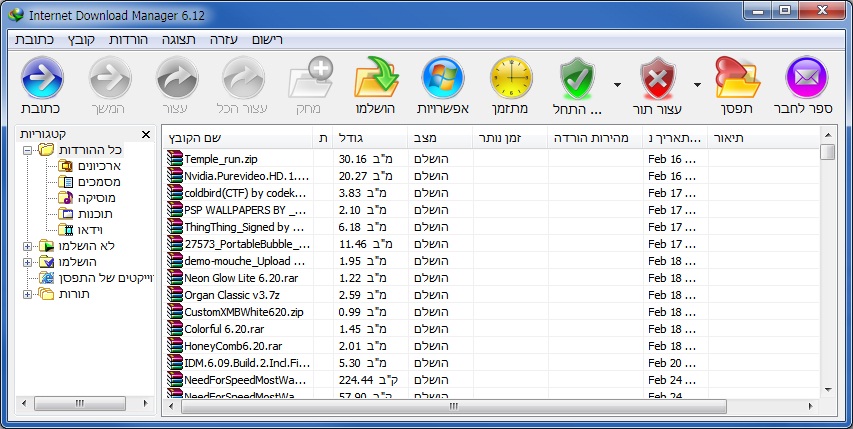
The Main Interface: Simply launch IDM to see your main command center:
Queue: Shows active and pending downloads.
Categories: Downloads sorted by categories (right-click on a category to set up).
Site Grabber: Web page downloading with advanced features (see below).
Scheduler: Automatic downloading on a schedule.
Managing Downloads: Browsing to a download’s location by right-clicking on the download in the list for the following functionalities: Pause/Resume, Abort, Prioritize (move up or down the list), Delete, or browse settings.
Grabbing Videos: Play a supported video. A floating “Download this Video” button (with quality options) will be present in the top right corner of the player. Click it, choose your preferred format/quality in IDM dialog, and download.
Scheduling Downloads: Right-click on any download link in your browser and choose “Download with IDM” -> “Schedule.” Click the clock icon next to “Start downloading:” in the IDM dialog and set your desired date and time. The file will download later automatically.
Customizing Settings: Go through Options (under Downloads) to configure IDM:
Connections: Alter max connections per server (typically 8 works best).
File Types: Select which file types IDM can automatically catch.
Proxy/Socks: Specify proxy if needed.
Sounds: Define download complete/failed sounds to your liking.
Save To: Define default download folders by category.

Advanced Features & Power Users’ Tips
Unlock even more power with Internet Download Manager:
Site Grabber: Require a whole site or section downloaded offline? Use Site Grabber (in the main menu). Enter URL, depth to download, file types, and links to follow. Great for offline reading or archiving.
Batch Downloads: Want to download large quantities of files at one go? Cut all their URLs into your clipboard. In IDM, go to Tasks -> Add Batch Download. Cut and copy-paste the URLs; IDM will display all of them to you to select and download in bulk.
Integration with antivirus: Navigate to Downloads -> Options -> Virus Check tab. Select “Do not start downloading infected files” and instruct IDM to use your antivirus application’s executable file.
Connection optimization: Under Options -> Connections, try changing the “Maximum number of connections” (default is 8). More is not always better; certain servers limit connections. Attempt to locate the golden mean for your average downloads.
Proxy Settings: If you use a proxy, specify it under Options -> Proxy/Socks.
Error Handling: Common errors are “Access Denied” (server issue, try again later) or “File not found” (corrupt link). IDM usually informs you why. Right-click failed download -> Properties -> Log tab for details. Most of the time, simply right-click and use “Resume” later.
IDM vs. The Rest (Free & Paid Competitors)
Internet Download Manager is not alone in the fray, but tends to be on the leading edge:
Free Competitors: Free Download Manager (FDM) or Downloader 2 offer acceleration and management for free. FDM is a good competitor, while Downloader is a beast with tricky websites (like file hosts) but is harder to master. Eagle Get is an additional free competitor.
IDM’s Edge: In brute download speed, unmatchable reliability, seamless browser integration (especially video grabbing), and simple, clean interface, Internet Download Manager always wins. It “just works” beautifully most of the time.
The Cost Factor: Indeed, IDM is a pay-software program (with a very liberal 30-day trial). But its functionality, performance, and time-saving benefits often make it worth the one-time license cost for serious downloaders. Consider it an investment in efficiency.
Advantages and Disadvantages of Internet Download Manager (The Unbiased View)
Let’s weigh it out:
Advantages:
Scorching Download Speeds: Speedup is simply excellent.
Rock-Solid Reliability: Rarely crashes or corrupts downloads.
Must-Have Pause/Resume: Works flawlessly, even after system restarts.
Enhanced Browser & Video Integration: Great and very convenient.
Convenient Scheduler & Organizer: Manages downloads nicely and in order.
Clean, Functional Interface: Simple and intuitive to use.
Disadvantages:
It’s Paid: Needs a license after the 30-day trial.
Windows Only: No mac or Linux versions are available.
Trial Nag Screens: The trial version will nag you to buy it.
Some Sites Block It: Some sites will actively try to stop download accelerators like IDM from functioning (although workarounds will usually be found).
Is IDM Worth It? (Our Verdict)
So, is Internet Download Manager worth the investment?
Summing Up the Benefits: IDM delivers on its key promises: highly sped-up downloads, solid-as-a-rock pause/resume, and top-notch organization. The browser integration and video grabbing are pro features that quickly make themselves indispensable. It’s a lot of time and frustration saved.
Who is it Best For? If you regularly download big files (software, games, media), need good resume capability (especially on shaky connections), enjoy saving online video with minimal fuss, or simply value efficiency and organization, Internet Download Manager is designed for you. Power users and frequent downloaders get the most bang for their buck.
Recommendation: Yes, definitely – for the right user. The free trial really is full-featured. Try it, aggressively test it for a week on your regular downloads and videos. Experience the speed and convenience for yourself.
If it transforms your workflow as it does for millions, the one-time license fee is a drop in the bucket for years of download nirvana. A free alternative might suffice for very casual downloaders, but for any serious downloading on Windows, IDM remains the gold standard.
Final Thoughts
Internet Download Manager is not another software utility; it’s a straightforward improvement to your Windows download experience. By efficiently accelerating transfers, never losing your progress, and being totally integrated with your browser (especially video downloads), it solves common annoyances in style and authority.
While the expense and Windows exclusivity are considerations, the simple utility and reliability it offers make Internet Download Manager a necessity for anyone who downloads files regularly. Give the trial a try – you’ll be amazed at how you ever managed without it.
(FAQ) About Internet Download Manager (IDM)
Internet Download Manager